How to Build a Revit Detail Container Model
Most engineering firms have a detail library somewhere. Far fewer have one that engineers actually use. The difference between the two almost always comes down to a single decision: whether the library lives inside Revit or somewhere outside it. If your details are PDFs on a network drive, a SharePoint library, or a folder of standalone DWG files, your engineers are not going to use them, they will redraw the detail every time. The only detail library that actually saves time is one that lives inside a Revit container model.
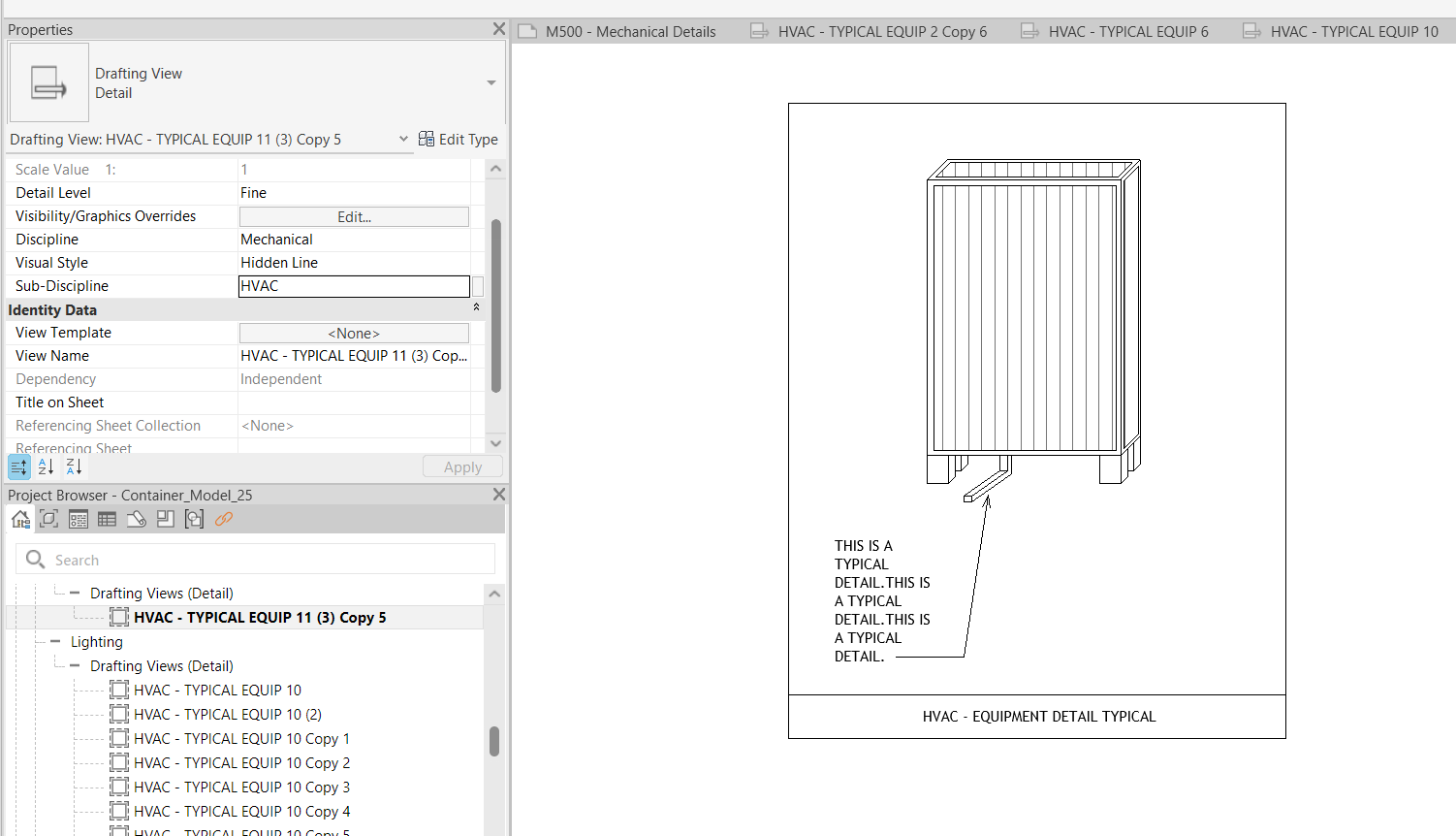
A container model is just a single Revit file that contains nothing but drafting views, every firm-standard detail your team has ever drawn, organized into one centrally managed RVT. There's no model geometry, no levels, no project specifics. It's a clean library file whose only purpose is to host details as native, editable Revit drafting views. From this file, any engineer on any project can copy the detail directly into their own model with the firm's standards intact: same line weights, same text styles, same hatch patterns, same annotation symbols.
The reason it has to be a Revit file (and not PDFs or DWG exports) is technical: Revit drafting views can only be edited inside Revit. The moment you flatten a detail to PDF or export it to DWG, you've created a frozen artifact. To update it, someone has to go back to the original Revit file, edit it, and re-export. Multiply that by every detail in your library and every revision over time, and the maintenance burden explodes. By keeping the details native to Revit, edits are atomic, open the container model, fix the line, save. Every project that pulls from the library going forward gets the corrected detail automatically.
Inside the container model, organization is everything. The single most useful Revit feature for detail libraries is the Discipline and Sub-Discipline parameters on drafting views. Set Discipline to Mechanical, Electrical, Plumbing, Fire Protection, or Architecture. Set Sub-Discipline to something more granular — "Chilled Water," "Cable Tray," "Sanitary," "Sprinkler Heads." When the project browser is configured to group by these parameters, your container model goes from a flat list of 800 details to a navigable tree where engineers can find the right detail in three clicks. This same metadata becomes searchable later if you bring tools like Details into the workflow, so the upfront investment compounds.
Standardize text sizes from day one. Pick three sizes (typically 3/32" for dense tag labels, and 3/16" for major headers) and create named text types in the container model (Detail Note, Detail Tag, Detail Header). Every drafter uses the same types. No more rogue 5/64" fonts because someone was zoomed in too far. Same logic applies to leaders and arrowheads: standardize on one arrowhead style (filled dot, open arrow, or tick) and one leader justification rule (always come into the bullet from a consistent side). Engineers reading details across hundreds of projects will subconsciously parse them faster when the visual language is identical every time.
Line weights and line types are the next layer. Revit ships with a default line-weight table that nobody loves. Override it in the container model with the firm's preferred pen weights, then export the line styles to every project template. Pipe lines at 0.5mm, hidden lines at 0.25mm, hatching at 0.18mm, pick weights, document them, and enforce them inside the container model. When a junior engineer drops a detail from your library into their project, they should never need to ask which line weight to use. The library answers the question.
Naming details is the part where most firms get sloppy. A name like "Detail 12" tells nobody anything. A name like "MEP_PIPE_HW_ELBOW_12IN" tells someone the discipline, the system, the component, and the size in seven characters of structured text. Adopt a naming convention with consistent delimiters and a fixed token order — discipline, system, component, descriptor — and apply it to every detail in the library. Searchability collapses without it. Tools that read your library (Revit's project browser, third-party plugins, AI recommendation engines) all rely on the name as the primary identifier. A messy name is a detail that effectively doesn't exist.
Plan for yearly Revit upgrades. Autodesk releases a new Revit version every spring, and a container model that was built in Revit 2024 can be opened in 2025 and 2026, but each upgrade is a one-way file transformation. Set a calendar reminder to upgrade the container model the same week your firm adopts each new Revit version, and version-tag the upgraded file so engineers can always pull from the matching year. Without this discipline, by year three of a container model's life you'll have engineers on three different Revit versions, half of whom can't open the library, and the library quietly dies.
All of this is the foundation. Details, our Revit plugin, sits on top of that foundation and turns it into something engineers actually want to use. Once the container model is organized with the conventions above, Details makes every drafting view in the library searchable, previewable, and one-click insertable from inside any active Revit project, no more navigating to the container model, no more copy-paste-monitor. The discipline and sub-discipline parameters you set up become the categories users browse by. The naming convention you enforced becomes the search index. And because the library is now structured, machine-readable data, the AI recommendation engine inside Details (Recs) can use it to surface the most relevant detail before the engineer even searches. The container model is the spine. Details is what makes it move.